How to Create a Direct Google Maps Review Link (Step-by-Step)
Learn how to create a direct Google Maps review link using your Place ID. Get more reviews with one-click access — no app required.
Google Maps reviews directly impact your store's visibility and customer acquisition. Businesses with more reviews rank higher in search results and attract more foot traffic. This guide shows you how to create a direct link that takes customers straight to your review page in one click.
Why Google Reviews Matter
- 90% of consumers read reviews before visiting a business
- Good reviews can increase revenue by up to 22%
- 63% are more likely to purchase from sites with reviews
- Highly-rated businesses see 31% higher average spend
How to Create a Direct Review Link
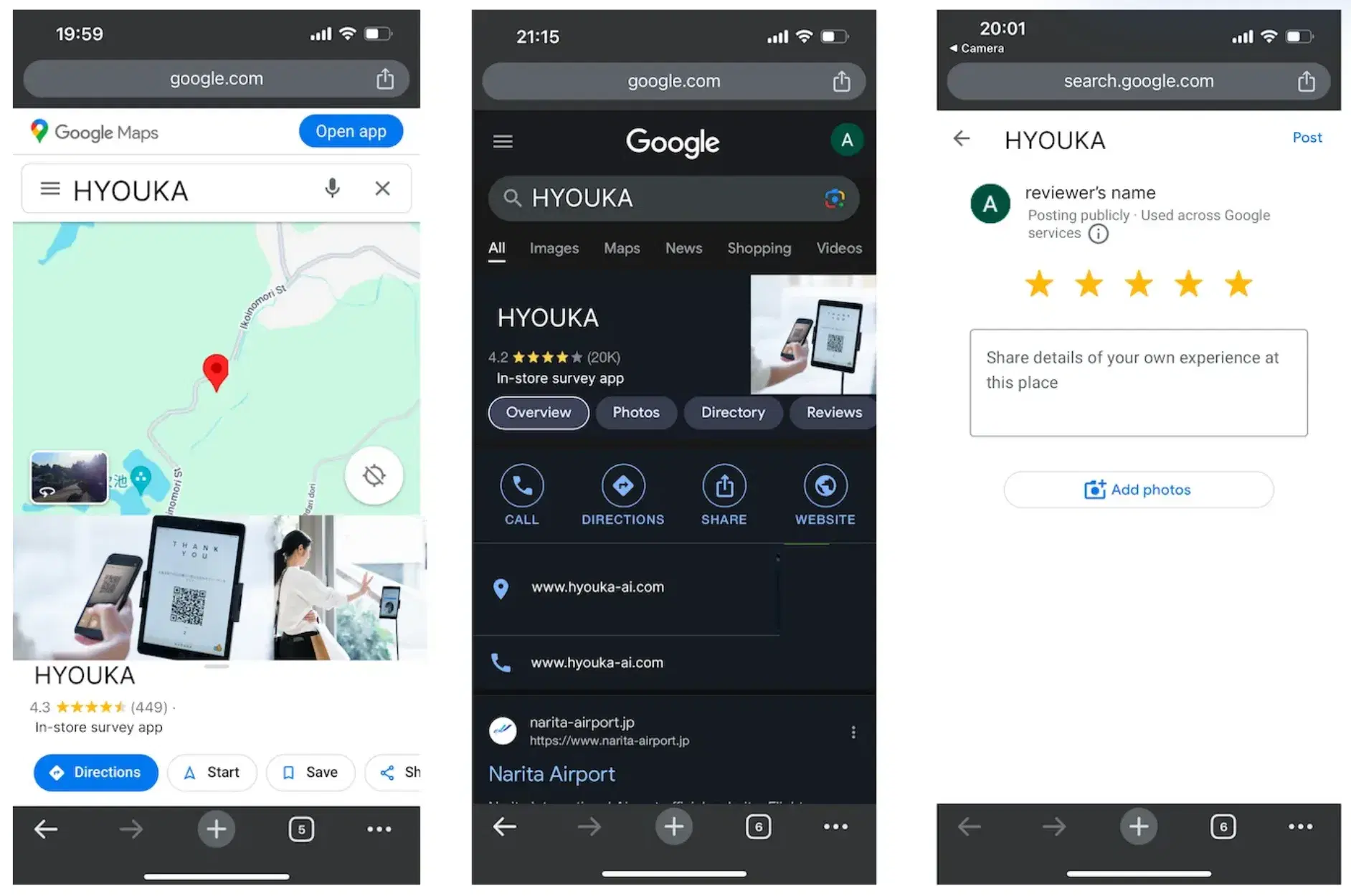
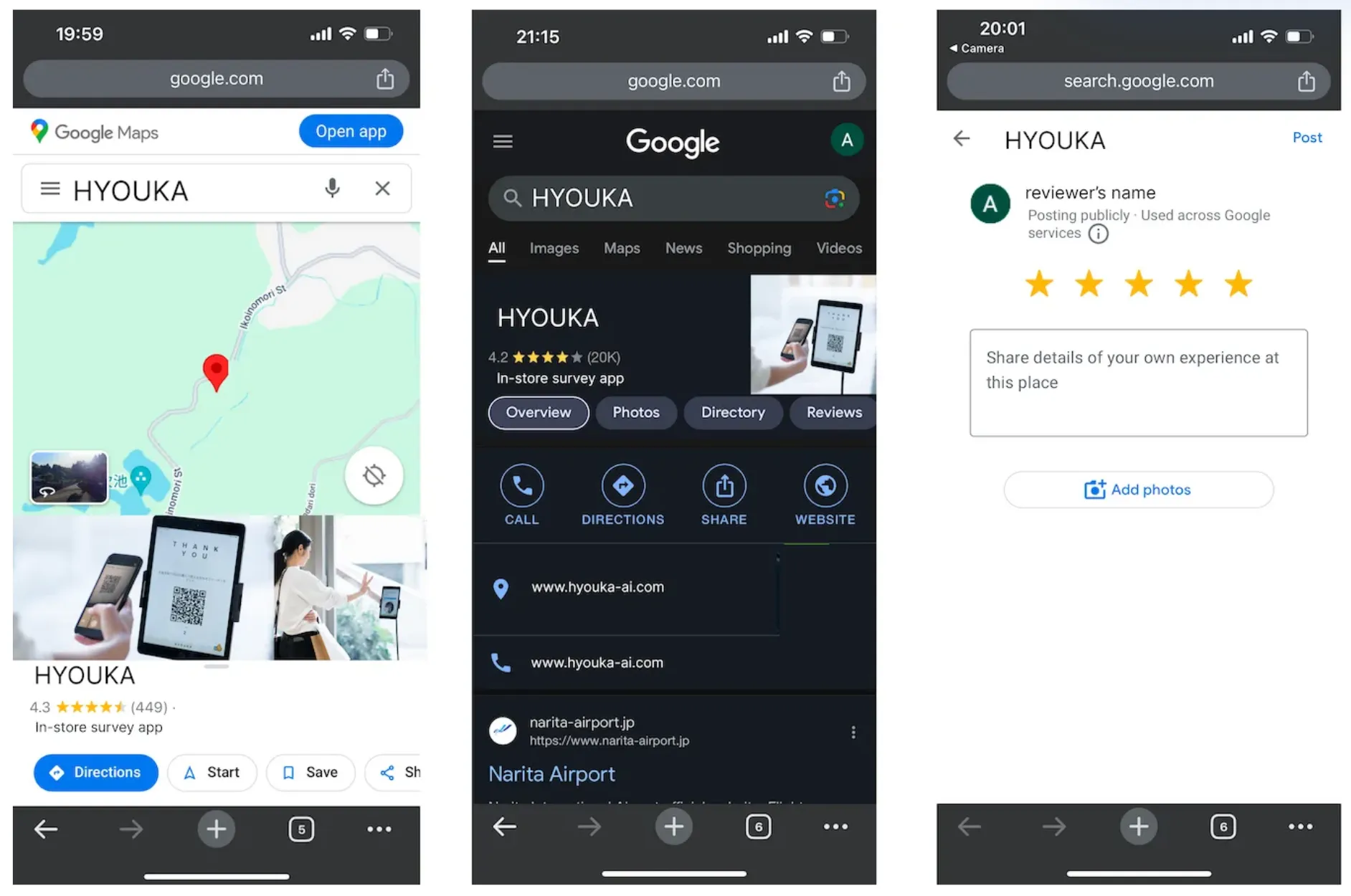
Normally, leaving a review requires multiple steps: open Google Maps → search for the business → find the review button → write a review. A direct link lets customers access the review form in a single click.
Step 1: Find Your Place ID
First, you need to get your business's Google Place ID:
- Go to Google's Place ID Finder
- Enter your business name or address in the search bar
- Select your business from the results
- Copy the displayed Place ID (a string like ChIJ...)
💡 A Place ID is an alphanumeric string starting with "ChIJ" (e.g., ChIJN1t_tDeuEmsRUsoyG83frY4). This is the unique identifier for your business on Google Maps.
Step 2: Build the Direct Link
Replace [YOUR_PLACE_ID] in the URL template below with the Place ID from Step 1:
https://search.google.com/local/writereview?placeid=[YOUR_PLACE_ID]
For example, if your Place ID is ChIJN1t_tDeuEmsRUsoyG83frY4:
https://search.google.com/local/writereview?placeid=ChIJN1t_tDeuEmsRUsoyG83frY4
Step 3: Use Your Link
Here are the best ways to deploy your review link:
- Generate a QR code and print it on receipts, table cards, or counter displays
- Embed the link in thank-you emails or SMS sent after purchase
- Share on social media profiles and posts
- Add a "Leave a Review" button to your website
Tips for Getting More Reviews
- Ask when satisfaction is highest — at checkout, after delivery, or when a compliment is given
- A verbal request from staff is several times more effective than a printed card
- Place QR codes where they're naturally visible so customers notice without prompting
- Always respond to reviews — businesses that reply tend to attract even more reviews
Important: Google's Policy
⚠️ Google's Terms of Service prohibit offering incentives for reviews (discounts, coupons, gifts, etc.). Even asking for "honest reviews" in exchange for something can result in review removal or penalties on your business account.
The best long-term strategy is to ask naturally and let genuine customer feedback speak for itself.
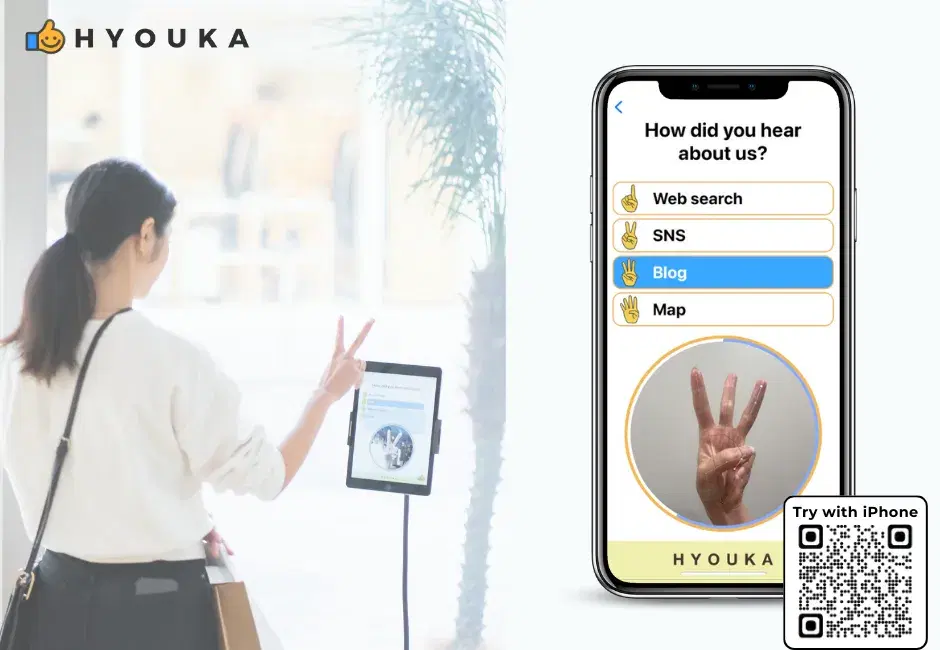
🚀 Collect More Customer Reviews Effortlessly
Use HYOUKA's in-store surveys to gather feedback and boost your Google reviews.